

Google AI Studio adds vibe coding for building apps
Google AI Studio introduces a vibe coding experience that turns instructions into AI-powered applications and automatically connects the required models and APIs. It also adds an example gallery, visual changes through annotations, and the option to use your own key when the free quota runs out.
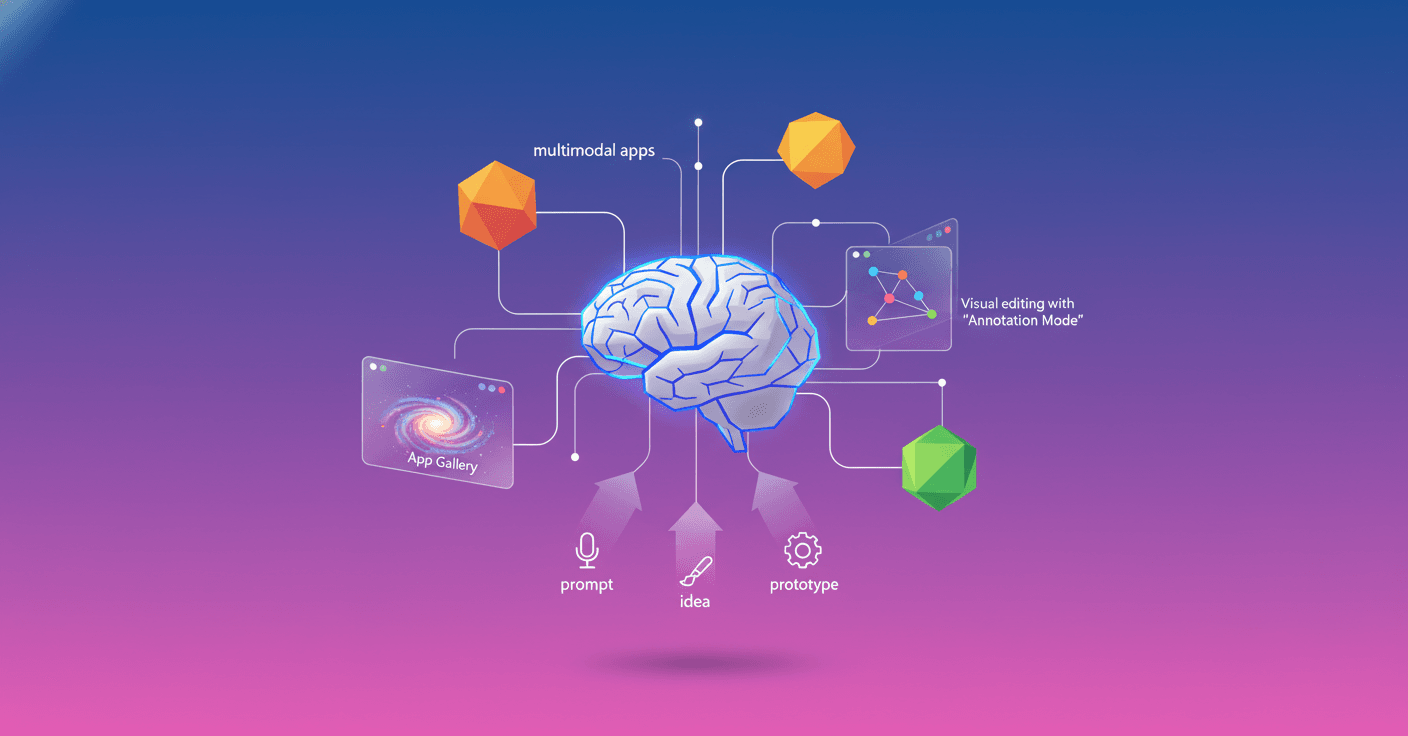
Google AI Studio now lets you describe an idea and turn it into an AI-powered application without manually connecting multiple APIs, SDKs, or keys. The new vibe coding experience uses Gemini to understand what you want to build and set up the models and services you need.
The goal is to shorten the distance between an idea and a working prototype. You can ask for an application that turns a photo into a fantastical image, generates videos from a script with Veo, or checks sources through Google Search.
From an instruction to an application
Until now, combining those features required knowing which API to use, how to authenticate it, and how to make multiple services work together. AI Studio tries to hide that complexity.
You only need to describe the application in natural language. Gemini identifies the required capabilities and configures the connection between the relevant models and APIs. If you do not know where to start, the “I’m Feeling Lucky” button can suggest an idea for an application.
That does not mean all the development work disappears. The tool generates a functional starting point, but you still need to review the result, adjust instructions, and check that the application behaves as expected.
Ideas to get started and reuse
Google has also redesigned the App Gallery, a visual gallery of applications built with Gemini. You can explore projects, preview them, view their initial code, and adapt an idea to your own needs.
While the application is being generated, a loading screen displays ideas related to the project. According to Google, these suggestions are created with the context of what you are building in mind, turning the wait into an opportunity to try new features.
Visual changes without searching through code
The new Annotation Mode lets you modify a specific part of the application by pointing to it directly. Instead of finding the relevant code, you can select a button, card, or image and request a change.
For example, you can say:
- “Make this button blue.”
- “Change the style of these cards.”
- “Animate this image from the left.”
Gemini interprets the annotation and applies the requested modification. The idea is to let you iterate on the design through a visual conversation, even if you have no experience writing code.
What happens when the free usage runs out
The experience includes a free quota. If you use it up, you can add your own API key to keep working without interruptions. When the free quota renews, AI Studio will automatically start using it again.
This can matter if you are building an application that makes many model calls, generates images or videos, or combines multiple services. Using your own key may also involve costs, depending on the terms of the APIs you use.
The main change is that Google AI Studio is trying to make building AI applications feel more like describing, testing, and fixing than configuring services from scratch. For developers, it could speed up prototyping. For people who have never programmed, it creates an entry point, although reviewing permissions, costs, and results will still be necessary.